
Automatic image
masking and blending.

Describe or select what needs changing. Rascal automatically builds the mask, protects the areas you want to keep, and blends the output from your generative fill model back into the original image.

What can Rascal do for you?
Rascal mischievously peeling a photo corner and looking down at his work

He’s a handy little Rascal.

A few tricks worth a closer look.

01 REMOVE DISTRACTIONS

Remove unwanted
people and objects.

Describe what should go. Rascal automatically turns your request into a precise edit area for your preferred fill model. No manual tracing. No assuming the LLM will just get it right.

How it works

  1. Locate and isolate

    Object detection turns “the people in the background” into located subjects. Segmentation follows their silhouettes down to the pixel, giving Rascal a precise mask without the hand tracing.

    segmentselect
  2. Shape the boundary

    Rascal gives the edit room to breathe: expanding the mask for shadows, closing small gaps, and carving out protected areas. Gaussian feathering softens the boundary so the replacement can settle into the scene.

    growclosesubtractfeather
  3. Blend by pixel weight

    Once your fill model paints the replacement, Rascal blends it into the shot pixel by pixel. The mask controls how much of each image appears along the boundary, while protected details stay exactly as they were.

    paste
ORIGINALBlue: editable · Soft edge: blend
01 / REQUEST

Describe the change.

“Remove the people in the background. Keep the sandcastle.”

02 CHANGE THE SETTING

Change the background.
Keep the product.

Keep the actual product while changing its setting. Rascal protects the original pixels, so your fill model doesn’t have to recreate the logo, lettering, or packaging.

How it works

  1. Separate edit, blend, and protect zones

    Every pixel gets a clear job: open to change, part of the blend, or off limits. Rascal turns your product selection into a protected region, keeping the details that make it yours.

    selectinvert
  2. Keep protection through refinement

    Inverting the selection makes the surroundings editable. Feathering can soften the transition, but protected pixels always take priority—even where a blend would otherwise reach them.

    invertfeather
  3. Copy the product, composite the background

    A new setting, with your actual product still in the shot. Rascal blends the generated background through the mask and copies protected pixels unchanged. The lettering survives because it is never regenerated.

    paste
ORIGINALBlue: editable · Soft edge: blend
01 / REQUEST

Describe the change.

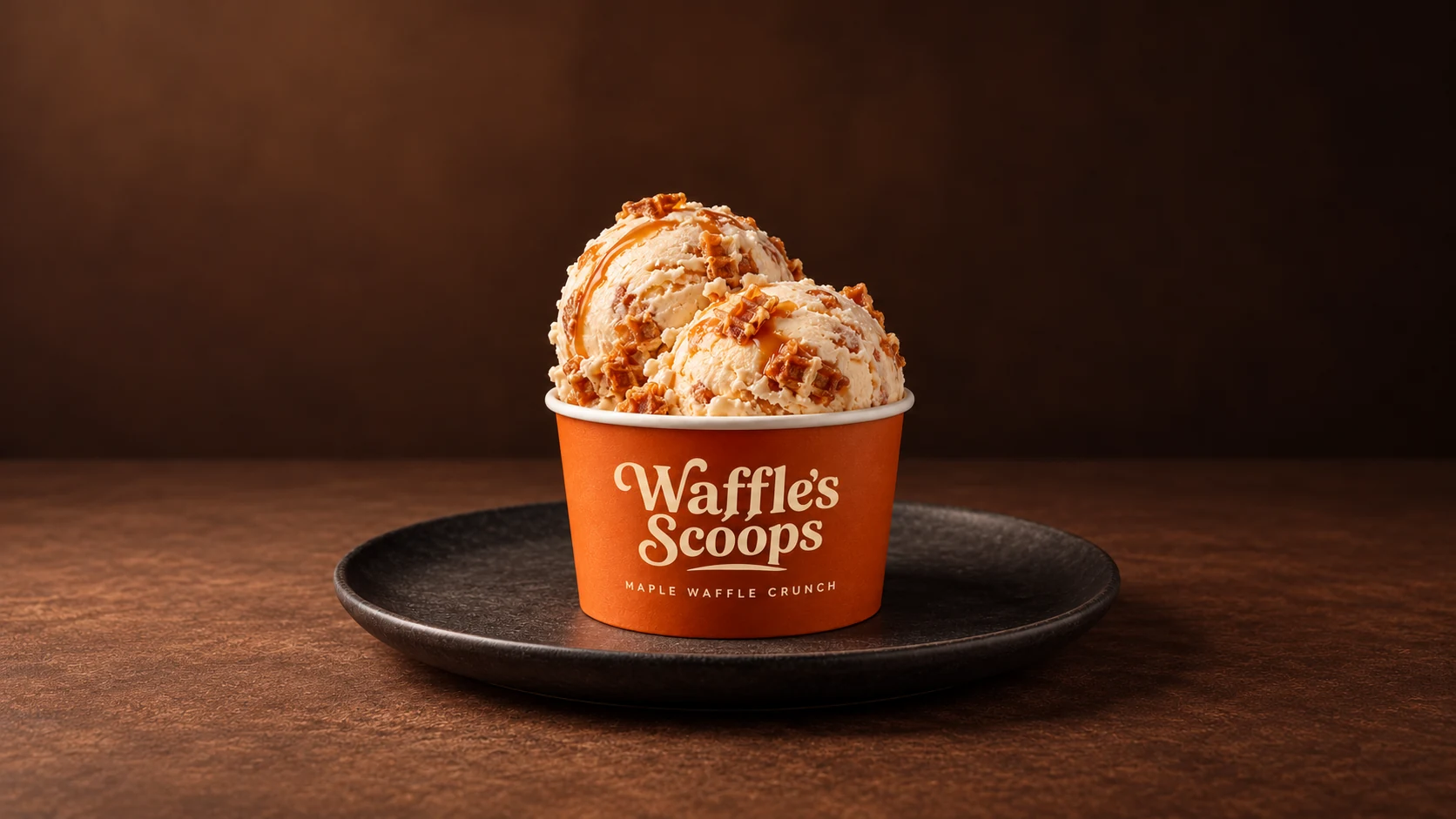
“Put this ice cream in a shop setting. Keep the product and its branding.”

03 REPAIR DAMAGE

Repair tears, scratches,
and stains.

Roughly trace a tear or select a stain. Rascal automatically refines the repair area and blends the filled pixels into the photograph. The undamaged image stays yours.

How it works

  1. Read the tear’s edges

    A rough stroke is enough to get started. Rascal reads changes in brightness across it to find the tear’s edges, then pulls the mask in around the damage. Where the edges are unclear, it keeps your original stroke width.

    tighten
  2. Calculate a soft transition

    Rascal measures each pixel’s distance from the repair and calculates a Gaussian fade. That gives the new pixels a soft landing in the photograph, without a hard cut around the fix.

    feather
  3. Match the surrounding tone

    For fills with a tonal mismatch, Poisson compositing preserves the fill’s local gradients while matching the original image at the boundary. Weighted blending then fades the repair into place.

    paste · poisson mode
ORIGINALBlue: editable · Soft edge: blend
01 / REQUEST

Describe the change.

“Repair this tear. Keep the rest of the photograph.”

Computer vision.
Pixel-level control.

Detection and segmentation find the subject. Mask shaping and compositing run locally in Rust, without an LLM call for each step. Use Rascal through its CLI, library, or MCP tools to give your agent or pipeline repeatable control over image edits.